Homework 1
Task 0 (Preliminaries)
Task 0.1 (Reading the Guidelines)
- Carefully read the homework submission guidelines.
- Be sure to follow these guidelines for every assignment.
Task 0.2 (Making a Git Repository)
- Create a git repository using the github classroom link (sent separately).
- All packages made for this class should be a subdirectory in this git repository.
- You will be expected to maintain this git repository throughout the whole quarter.
Task 0.3 (Making a README)
Add a file called
README.mdto the base directory of the repository, based on the following template:# ME495 Sensing, Navigation and Machine Learning For Robotics * <First Name> <Last Name> * Winter 2025 # Package List This repository consists of several ROS packages - <PACKAGE1> - <one sentence description>
- Replace the
<ITEM>with the appropriate item in the template above. - Add this
README.mdto your repository and commit. - Whenever you add a new package, list it in this
README.md - Linux is case-sensitive.
Readme.mdandREADME.mdare not the same file asREADME.md
Task 0.4 (Making a Tasks.md)
- Add a file called
Tasks.mdto the repository - Whenever a task is complete, list it in this file on its own line.
After completing all the tasks (including this one) your
Tasks.mdwill look likeTask 0.1 Task 0.2 Task 0.3 Task 0.4
- If, when you submit an assignment, a task is only partially complete, you can add a description about
what is working and what is not in the
Tasks.md
Task A (Robot Description)
The goal of this task is to copy and modify the turtlebot3 model in the turtlebot3_description for our needs.
Throughout this project, we may have reason to visualize multiple turtlebots in rviz simultaneously:
for example we may want to see the estimated turtlebot location and the actual turtlebot location.
We will use a custom version of the provided package.
Upon completion, you will be able to display multiple turtlebot3 models in rviz, each appearing
with a different color. You will also be able to change the physical properties of the robot by
editing a yaml file.
Task A.1 (nuturtle_description package)
- Create an
ament_cmakeROS package callednuturtle_description.- This should be a directory within your repository (i.e.,
<repo>/nuturtle_description) - The package will contain urdf files and basic debugging, testing, and visualization code for the robots you will be using in this class.
- This should be a directory within your repository (i.e.,
- Update the
package.xmlas follows:- Give it version number of
0.2.6 - Provide a descriptive description.
- Fill in your name and email address as the maintainer and as an author.
- Set the License to APLv2 (the Apache License 2.0). You could use a different one but this is what turtlebot3 code is released under).
- The package has an
exec_dependfor the packages used in its launchfiles, so these should be updated appropriately. - It also has an
exec_dependonros2launch.
- Give it version number of
- The package (like all packages you write) must pass
colcon testwith no warnings or problems. - HINT: It is a good idea to commit after creating the initial package but before it actually does anything.
Task A.2 (visualization)
- Write a launchfile called
load_one.launch.xml(in<repo>/nuturtle_description/launch) that loads theturtlebot3_burgerURDF into arobot_state_publisherand optionally allows viewing it in rviz.- The argument
use_rviz(boolean, defaulttrue) controls whether rviz is launched. - The argument
use_jsp(boolean, defaulttrue) controls whether thejoint_state_publisheris used to publish default joint states. - The appropriate
rvizconfiguration should be stored innuturtle_description/config/load_one.rviz. - If
rvizis launched, the launchfile should terminate whenrvizis closed.
- The argument
- Copy the minimal set of
mesh(e.g.,.stl) andurdf/xacrofiles from the branch of theturtlebot3_descriptionpackage required to display the turtlebot.- Do not include any files that are not necessary.
- Include all the necessary
.stlfiles in the basemeshes/directory (e.g., do not keep themeshes/bases,meshes/sensors, andmeshes/wheelssub-directories. - Make sure that when copied to your repository the
.stlfiles have the proper permissions (e.g. are not executable). - If you use any
.urdffiles (as opposed to.urdf.xacrofiles) rename them to.urdf.xacroand set them up to use xacro.- We will be modifying them later and need xacro.
- Modify the
urdf/xacrofiles so that themeshesare able to be loaded from thenuturtle_descriptionpackage. - No
turtlebot3should need to be installed on your system forros2 launch nuturtle_description load_one.launch.xmlto work.- In other words, your package does not have any dependencies on any
turtlebot3packages. - Be careful: the
urdffiles, by default, load assets from theturtlebot3_descriptionpackage, so you need to modify this behavior. - If you temporarily remove the
meshes/in your package and everything still works, the assets are likely being loaded from theturtlebot3_descriptionpackage - If you remove all
turtlebot3_*packages from your system, your package should still work.
- In other words, your package does not have any dependencies on any
- Every file from
turtlebot3_descriptionthat you modify should have a comment at the top stating that it was modified and why.
Task A.3 (yaml File)
- Create
<repo>/nuturtle_description/config/diff_params.yamlfile to provide a complete parametric description of a differential drive robot.- Not all these parameters will be used in this assignment, but they will be useful later.
- The
diff_params.yamlhas the following parameters:wheel_radius: The radius of the wheels (see: Turtlebot3 Specifications)track_width: The distance between the wheels (see: Turtlebot3 Specifications)motor_cmd_max: 265. The motors are provided commands in the interval[-motor_cmd_max, motor_cmd_max]motor_cmd_per_rad_sec: Each motor command unit (mcu) is0.024 rad/sec(i.e.,1 mcu = 0.024 rad/sec)encoder_ticks_per_rad: The number of encoder ticks per radian. One revolution of the wheel is \(2^{12}\) ticks because it is a 12-bit encoder. (i.e. \(2^{12} \mathrm{ticks} = 2 \pi \mathrm{rad}\))collision_radius: Set this value to be0.11: we will use a cylinder as simplified geometry used for collision detection.
- Modify the
turtlebot3URDF so that it uses the parameters fromdiff_params.yamlsuch that:- Changing
wheel_radiuschanges the collision geometry of the wheels. - Changing
track_widthchanges the distance between the wheels. - The
base_linkof the robot uses thecollision_radiusas follows:- It's collision box should be cylinder the same height as the box it is replacing that fully encloses the turtlebot3.
- Changing
- Hint: See Xacro Notes
Task A.4 (prefix)
Throughout this project we will need to track and display multiple robots.
We will add an argument called color to the turtlebot3 xacro file, which will change the color of the robot
and launch nodes corresponding to each robot in their own respective namespaces.
- Modify the xacro URDF files to take an argument called
color: possible values arered,green,blue,purple.- The RGB values for Purple are Northwestern Purple: Red: 0.3, Green: 0.16, Blue: 0.52
- Based on the value of
color, the resulting URDF file should set the color of thebase_linkappropriately - Modify
load_one.launch.xmlto accept an argument calledcolor(defaulting topurple) that- Determines the
colorthat is passed to thexacrofile as an argument. - Determines the namespace in which all nodes (including
rviz) are launched.- All nodes will be launched in a namespace given by
$(var color)
- All nodes will be launched in a namespace given by
- Sets the
frame_prefixparameter of therobot_state_publishersuch that alltfframes published are prefixed with$(var color)/ - Set the appropriate
tf-prefix in the Robot View in rviz.- A different
rvizconfiguration file will be needed for eachtfprefix.
- A different
- Sets the appropriate
fixed_frameinrviz. - Use the
choicesattribute to automatically document and restrict the value of the argument to valid colors
- Determines the
Task A.5 (multi robot)
In this task we will test the ability to load multiple independent robots in rviz.
- Create an XML launchfile called
load_all.launch.xmlthat loads thered,green,blue, andpurplerobots and displays them inrviz- Create and save the configuration in
config/basic_all.rviz
- Create and save the configuration in
- This launchfile should include
load_one.launch.xmlseveral times to accomplish its task. - This launchfile should start rviz in the global namespace and terminate the launchfile when rviz closes
- Each robot should have it's own
joint_state_publisherandrobot_state_publisherin the appropriate<color>namespace (i.e.,red/,green/,blue/, orpurple/) - The locations of the robots should be as follows:
redis at (0.25, 0, 0) in thenusim/worldframegreenis at (0, 0.5, 0) in thenusim/worldframeblueis at (-0.5, 0, 0) in thenusim/worldframepurpleis at (0, -1.0, 0) in thenusim/worldframe
- A
tfview should be added torvizand thenusim/worldframe should be the only frame visible. - In the rviz model tree, rename each model to it's appropriate color
- Instead of four items name "RobotModel", have a "BlueRobot" and a "RedRobot" etc.
- Hint: use
ros2 run tf2_ros static_transform_publisher --helpfor information on a node that the launchfile can run to publish static transforms in order to publishnusim/world
Task A.6 (README)
Write a
README.mdfor your package based on the following template (fill in the<X Here>with the appropriate command. Remember to remove the<>:# Nuturtle Description URDF files for Nuturtle <Name Your Robot> * `<Command Here>` to see the robot in rviz. * `<Command Here>` to see four copies of the robot in rviz.  * The rqt_graph when all four robots are visualized (Nodes Only, Hide Debug) is:  # Launch File Details * `<Command To Show Arguments of load_one.launch.py>` `<Output of the Above Command>` * `<Command To Show Arguments of load_all.launch.py>` `<Output of the Above Command>`
- The
rqt_graphshould be saved as an.svgfrom therqt_graphprogram and stored asimages/rqt_graph.svg. - A screenshot from rviz showing all four robots should be saved as
images/rviz.png - The images must display properly when viewing the
README.mdon GitHub
Task B (C++ and 2D Transforms)
Here you will begin to write a library called turtlelib for performing 2D rigid body transformations and other
functionality that will be needed for the project.
You are not permitted to use any libraries other than the C++ standard library to complete this task.
The first steps in this assignment take you through the process of building a non-ros C++ project.
The tasks here are grouped according to what needs to be done, but it is likely not a good idea to simply implement the whole library and then test it. Instead you should read through the tasks, establish the problem and framework, and then implement each feature and test one by one.
Task B.1 (The Package)
- Create a new directory called
turtlelibin your base repository.- Create a
CMakeLists.txtthat includes the ability to generatedoxygendocumentation. - You should create and install a library called
turtlelibthat can be referenced asturtlelib::turtlelibfrom other packages - The CMake Basics page should help get you started.
- Create a
- This package will be independent from ROS and not use any ROS libraries or functionality
- However, colcon will still be able to build the package
Task B.2 (angles)
- Download angle.hpp
- This file will be a header that is part of a library called
turtlelib - You are responsible for filling in the function definitions, but are not permitted to change any function prototypes or otherwise
modify the public API of
angle.hpp.
- This file will be a header that is part of a library called
- Write a program called
converterthat:- Prompts the user for input with the following string
"Enter an angle: <angle> <deg|rad>, (CTRL-D to exit)\n" - Reads in the angle (as a double) and the unit (a string either
"deg"or"rad").- The
angleand theunitare separated by whitespace.
- The
- Outputs ="{angle} {unit} is {converted_normal_angle} {other_unit}.\n", where
{angle}is the angle entered by the user, but normalized to(-180, 180]or(-pi, pi)(depending on the unit){unit}is the unit entered by the user{converted_normal_angle}is{angle}converted to degrees (if{unit}israd) or radians (if unit isdeg).- The
converted_normal_angleangle should be normalized.
- The
{other_unit}is"deg"if{unit}is"rad"or"rad"if{unit}is"deg"
- The program should loop and prompt again, until the user enters the EOF character (
CTRL-D) - If the input is malformed, the user should be prompted with
"Invalid input: please enter <angle> <deg|rad>, (CTRL-D to exit)\n"
- Prompts the user for input with the following string
Task B.3 (geometry primitives)
- Download geometry2d.hpp
- You are responsible for implementing this file in
geometry2d.cppand filling in any blank implementations (indicated by{}ingeometry2d.hpp). - You may add
privatemembers to any class. - Do not add or modify any
publicmembers, function prototypes or add any names or variables to the global orturtlelibnamespaces (or add any new namespaces). - The doxygen style comments in the header files should not be repeated in the implementation files
- It is a matter of style whether to put these detailed comments in the
.cppor.hppfile - Use doxygen style comments throughout your code for the rest of this course.
- It is a matter of style whether to put these detailed comments in the
- You are responsible for implementing this file in
Hints
- For more information about the operator overloading going on in this example see (a good Stack Overflow post)
- For more information about transforms, see Rigid Body Transformations in 2D
- Implementing the stream extraction operators
>>and<<can successfully be done in only a few lines of code.- Simplifications can be made by looking at the specification for operator>>
and the hint in
geometry2d.hpp
- Simplifications can be made by looking at the specification for operator>>
and the hint in
- It makes sense to iterate with B.4, implementing some functionality and then testing.
Task B.4 (unit testing geometry)
- In
test_geometry2d.cpp, test all non-constexpr functions ingeometry2d.hppusing Catch2- See The Catch2 Tutorial
- Be sure to use Approximate Floating Point Comparisons where needed
- Do NOT use your
almost_equalimplementation for testing purposes because it does not provide test diagnostics: it is for an actual system that requires approximate comparison.
- Every function should have at least one test.
- Make sure the tests all pass! You will be using this library in future assignments so you need your implementation to be correct.
Hints
- It makes sense to iterate with B.3 so that you can use the tests to help you implement functionality
- The
std::stringstreamclass will be helpful for testingoperator<<andoperator>>.- It lets you use an
std::stringas a stream instead of a file.
- It lets you use an
Task B.5 (SE(2) geometry)
- Download se2d.hpp, a
turtlelibheader file that lets you work withSE(2)geometry.- This file will be a header that is part of the
turtleliblibrary - Implement the specified functionality in a file called
se2d.cpp - You may add
privatemembers to any class but do not add or modify anypublicmembers or any function prototypes or otherwise add to or modify theturtlelibor global namespaces. - Do not use any external libraries
- This file will be a header that is part of the
Hints
- It will be helpful to iterate with writing unit tests so you can test as you go
- This task is significantly more difficult to implement, debug, and optimize if you take the approach of doing
everything in
SE(3)and specializing toSE(2), rather than immediately assuming that the world is 2 dimensional
Task B.6 (unit testing SE(2))
- In
test_se2d.cpptest every function and method inse2d.hpp - You may directly combine your tests with the work of your classmates to achieve this coverage, as long as the following conditions are met:
- You personally must develop and write at least six test cases.
- You may only share or receive test cases directly from the person who wrote them.
- You do not work with more than three other students
Each test is annotated with the author's name as follows:
TEST_CASE("inverse", "[transform]") // First Name, Last Name- The author name and test name are listed on their own line in
citations.txt - Each
TEST_CASEcan have multiple assertions (e.g.CHECK,REQUIRE) but only one author
Task B.7 (visualization)
It can be difficult to know if your geometry-related code is working without being able to visualize it. Unfortunately there is no generally agreed upon good plotting library for C++. Therefore, you will make your own visualizations by outputting the content to an SVG file (a vector-graphics file format). Although the SVG specification is complicated, the subset that we need is small and can be output by a simple C++ program.
Examine this example svg file in a text editor to understand how SVG (for our purposes) works and what content you will need to produce.
I have commented the file with XML comments (<!-- -->): these do not need to be included in your version but rather are meant to explain the format.
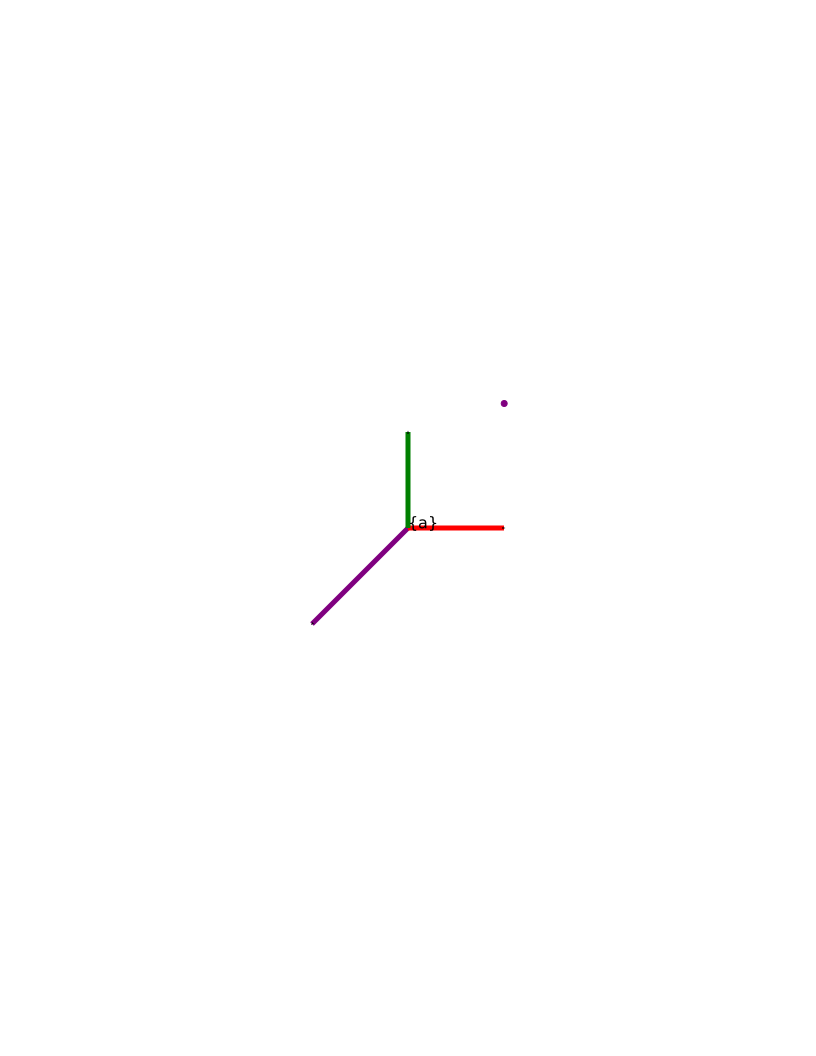
- Create a new header file
svg.hppand implementation filesvg.cppinturtlelib. - Design and implement a class called
Svgin theturtlelibnamespace that lets you "Draw" points, vectors, and coordinate frames- The specifics of each of these primitives is specified in the example svg.
- You will need some provision to write the SVG to a file, or get the file contents as a string that can then be written to a file.
- Your
Svgclass must be safe to use, even in the face of exceptions.- An invalid SVG file should never be written to disk: either the file is a valid Svg or it is not written
- Write at least one unit test for the SVG library in a file called
test_svg.cpp. Here's how:- Get the Svg class working and verify it manually, making sure that all object types are present
- Use the output from your manually verified example in a test case
- This way, if you ever make a change that breaks the test example the test will fail.
Hint
- Modify some values of the sample svg by hand and view the image to get a feel for what they do.
- You may wish to maintain a separate "testing" program that you manually use to call your
classto help. - You will need a way to convert between
turtlelibcoordinate frames and the SVG ViewBox coordinate frame - The location of a point can be determined by a
Transform2Drelative to the midpoint of the page - Drawing a vector depends on not just the vector's length and direction, but also the position of the vector's tail.
Task B.8 (executable implementation)
- Create a file called
frame_main.cpp, which will compile into an executable calledframe_main. Here is what the program should do:- Prompt the user to enter two transforms: \(T_{ab}\) and \(T_{bc}\).
- Compute and output \(T_{ab}\), \(T_{ba}\), \(T_{bc}\), \(T_{cb}\), \(T_{ac}\), and \(T_{ca}\) and draw each frame in the
svgfile (with frame \({a}\) located at \((0, 0)\)). - Prompt the user to enter a point \(p_a\) in Frame
{a} - Compute \(p_a\)'s location in frames \({b}\) and \({c}\) and output the locations of all 3 points
- Use purple to draw \(p_a\), brown to draw \(p_b\), and orange to draw \(p_c\).
- Prompt the user to enter a vector \(v_b\) in frame \({b}\)
- Normalize the vector to form \(\hat{v}_b\).
- Draw \(\hat{v}_b\) with the tail located at \((0, 0)\) in frame \({b}\), in brown.
- Draw \(v_b\) with tail located at \((0,0)\) in frame \({b}\), in black.
- Output \(v_b\) expressed in frame \({a}\) and frame \({c}\) coordinates
- Draw \(v_a\) with the tail at \((0, 0)\) in frame \({a}\), in purple.
- Draw \(v_c\) with the tail at \((0, 0)\) in frame$ \({c}\), in orange
- Output the drawing to
/tmp/frames.svg. - All outputs that are there to prompt the user should be written to
stderr - All outputs that are in response to a calculation should be written to
stdout
- Run your program using numbers that differ from the ones in my example.
- Create a transcript of the input and save it as
turtlelib/exercises/B6_frame_input.txt- Running
frame_main < frame_input.txtshould result in your program running as if you entered each line inframe_input.txtvia the keyboard
- Running
- Save and commit the output to
turtlelib/exercises/B6_frame_output.txt- After creating
B6_frame_input.txtyou can create this file withframe_main < B6_frame_input.txt > B6_frame_output.txt - The
stderrandstdoutis separated so the output you capture is only the results of computations, not your prompts.
- After creating
- Save and commit
/tmp/frames.svgtoturtlelib/exercises/B6_frames.svg
- Create a transcript of the input and save it as
Hint
- Think about how the transforms should work and what should be displayed, then open the image in inkscape.
- Sometimes, objects will be drawn on top of each other (e.g., points show up in the same location regardless of what frame they are expressed in)
- In inkscape you can select objects and move them around to see what is stacked.
- In some cases above, the correct answer may involve objects being drawn on top of one another.
Task B.9 (README.md)
- Provide a README.md for the turtlelib library
- It should offer a brief description of each of the three header files you implemented.
Task C (The Simulator)
We will now create a package called nusim that can be used as a simulator and visualizer.
The nusimulator node will provide a simulated robot environment that we will build upon throughout the course.
The nusimulator node uses rviz2 for visualization. Initially, it will be capable of creating some stationary walls and tracking the position
of a robot.
The overall structure of the simulation is as follows:
- Initialization
- Loop at a fixed frequency until terminated.
- On each loop iteration:
- Update the state of the world (integrate time forward by a timestep)
- Publish messages that provide state information as if it were coming from a real robot, and update the
rvizvisualization - Process service/subscriber callbacks to get commands for the next time step
We will separate information that can be only be known/done by the simulation (such as teleporting the robot or exact distance measurements) and information that can be known/done by the robot (such as driving forward or noisy distance measurements) using ROS namespaces.
Anything topics/services/parameters relating directly to the domain of the simulation will be done in the nusim namespace and
should not be accessed by nodes not in that namespace.
It may be useful to start writing the launchfile C.5 prior to finishing some of the other tasks so that you may easily run your code as you work on it.
Task C.1 (nusim package)
- Create an
ament_cmakeros package callednusim.- This should be a directory within your repository (i.e.,
<reponame>/nusim) - Update the
package.xmlas follows- Give it a version number of 0.2.6
- Provide a description other than the default.
- Fill in your name and email address as the maintainer and as an author
- Choose a license other than TODO
- The package has a
dependonrclcpp - Fill out the other dependencies properly.
- This should be a directory within your repository (i.e.,
- The package must pass
colcon testwith no warnings or problems, including the default tests that are created when runningros2 pkg create
Task C.2 (simulation node)
- Create the node
nusimulator(the main simulation node) and implement it insrc/nusim.cpp - It should run a main loop at a frequency specified by the parameter
rate.- If
rateis not specified, default to 100 Hz
- If
- In the main timer publish an
std_msgs/msg/UInt64~/timestepvalue, which tracks the current timestep of the simulation- Each time the main timer executes, another timestep of the simulation occurs.
- Implement a
~/resetservice of typestd_srvs/srv/Emptythat restores the initial state of the simulation.- For now, the only state is the
~/timestepvalue, which should be reset to zero. - As more functionality is added to the simulation, the
~resetservice will need to do more.
- For now, the only state is the
- Note the
~before the topic names. This symbol makes the topic "private" to the node, meaning that if the node is called, for example,nusimulatorthan~/timestepwill resolve tonusimulator/timestep
Task C.3 (simulated turtle)
We will next add the turtlebot3 robot to the simulation. The simulation must track, control, and publish information about this robot.
- The actual (ground truth) state of the simulated turtlebot will be represented by the
redturtlebot from Task A.- The ground truth is known only by the simulator
- The
nusimulatorshould broadcast a transform between thenusim/worldframe andred/base_footprintframe.- This transform represents the actual pose of the robot.
- Your control algorithms are never allowed to lookup frames starting with
nusimas that is ground-truth data known only to the simulator. - Your control algorithms are also never allowed to lookup frames starting with
red, since these are part of the "ground truth" robot.
- The initial pose of the robot should be specified by the parameters
x0,y0, andtheta0provided to thenusimnode- When the
nusimstarts, the robot should be at the position specified by these parameters relative to thenusim/worldframe - These values default to
0.0if not specified
- When the
- When the
~/resetservice is called, the robot should be restored to the location specified by thex0,y0, andtheta0parameters- The
~/resetservice should read the current values of thex0,y0, andtheta0parameters, even if they were set after startup
- The
Task C.4 (walls)
- The arena where the robot drives will be rectangular, with walls on the boundary.
- Allow the user to specify the size of the arena using parameters:
arena_x_lengthis the length of the arena in the world \(x\) directionarena_y_lengthis the length of the arena in the world \(y\) direction- The arena is centered at \((0,0)\),
- The walls are
0.25mtall - You can use whatever thickness you would like, but the arena is sized in terms of the free space inside the walls.
- The walls should be
redto signify that their location is known only to the simulator. - Publish the walls as a
visualization_msgs/MarkerArraymessage on the~/real_wallstopic once when the simulator starts.- Use the appropriate QoS settings so that the walls will show up even if rviz subscribes after they are published.
Task C.5 (cylindrical obstacles)
- Add the ability to add cylindrical obstacles to the environment
- The cylinders should be
0.25mtall, but can have a variable radius (as specified by the user) - The cylinders should be red (locations of the cylinders are ground-truth) and published in the
rednamespace of the Marker message. - All obstacles will be specified as parameters to the
nusimnode:obstacles.xis a list of the obstacles' x coordinates (float64)obstacles.yis a list of the obstacles' y coordinates (float64)obstacles.xandobstacles.yshould always be the same length or the node should log an error message and exit.obstacles.ris the radius of the obstacles ( float65). We will assume that all obstacles are the same radius.- The node reads these parameters once and never updates them
- You should be able to specify an arbitrary number of obstacles using this method.
- The
nusimshould publish avisualization_msgs/MarkerArraymessage on the~/real_obstaclestopic once on startup- Use the appropriate QoS settings so that the walls will show up even if rviz subscribes after they are published.
Task C.6 (nusim launch)
- Write an xml launchfile called
nusim.launch.xmlthat starts the simulator- The launchfile should start
rviz,nusim, and load all parameters required to run the simulation - The configuration file for
rvizshould be stored inconfig/nusim.rviz - When launched, the robot, obstacles, and
nusim/worldtf frame should be visible - The launchfile should include other launchfiles you've written as needed
- The launchfile should start
- The default parameters to run the simulation should be stored in
config/basic_world.yaml- The basic_world should have three cylindrical obstacles of radius
0.038m, placed at(-0.4, -0.7),(0.7, -0.8), and(0.5, 0.8). - Start the robot at
(-0.6, 0.3, 1.28) - We will add to this configuration file as more parameters are required
- The basic_world should have three cylindrical obstacles of radius
- The launchfile takes an argument called
config_fileto thenusim.launchlaunchfile.- This argument should let a user specify a
.yamlfile to configure the simulator. - If blank, use the default
config/basic_world.yamlconfiguration file.
- This argument should let a user specify a
Task C.7 (README.md)
Create a README.md for this package. It should provide
- A brief description of the package.
- Descriptions of the provided
launchfiles - A description of the parameters that can be used to change simulator settings.
- Include a screenshot from
rvizas launched fromnusim.launch- Store the image in
nusim/images/nusim1.png
- Store the image in